ExchangeLodge Design System

A design system built to make dense financial data readable

Background

ExchangeLodge is a platform for processing private investment data. Teams use it to review and validate partner capital account (PCAP) statements, track the health of each workflow, and move holdings from raw data to approved figures. The product is almost entirely tables, numbers, and status, so the design system had to make large amounts of financial data easy to scan, compare, and act on. As an early-stage startup, ExchangeLodge needed a system that a small engineering team could build quickly and keep extending as the product grew.

Involvement

I was the only designer at ExchangeLodge, so I owned the design system end to end, from the brand foundations through to the components used across the platform.

The system is built on Material Design. That gave the engineering team a familiar, well-supported starting point, and let me focus my time on the components Material doesn't cover: the complex tables, validation states, and workflow patterns that financial data processing needs.

A core focus was data systems: defining how charts, tables, and status indicators should look and behave so that every workflow presented financial data in a consistent way.

Deliverables

A documented style guide covering brand colors, secondary and gray palettes, typography, and spacing.

A library of 30 documented components, each with usage guidelines, anatomy, and states, extending Material Design with custom data tables, filter dialogs, workflow cards, and side panels.

A data visualization library with chart components and color guidance, plus the workflow screens, like PCAP processing, that put the system to work.

Focus area

Data Systems

Data is the product at ExchangeLodge, so data visualization was treated as its own part of the system rather than a one-off. I defined a set of reusable chart components and the color rules behind them so that any team could build a chart that was accurate, accessible, and on brand.

Chart library
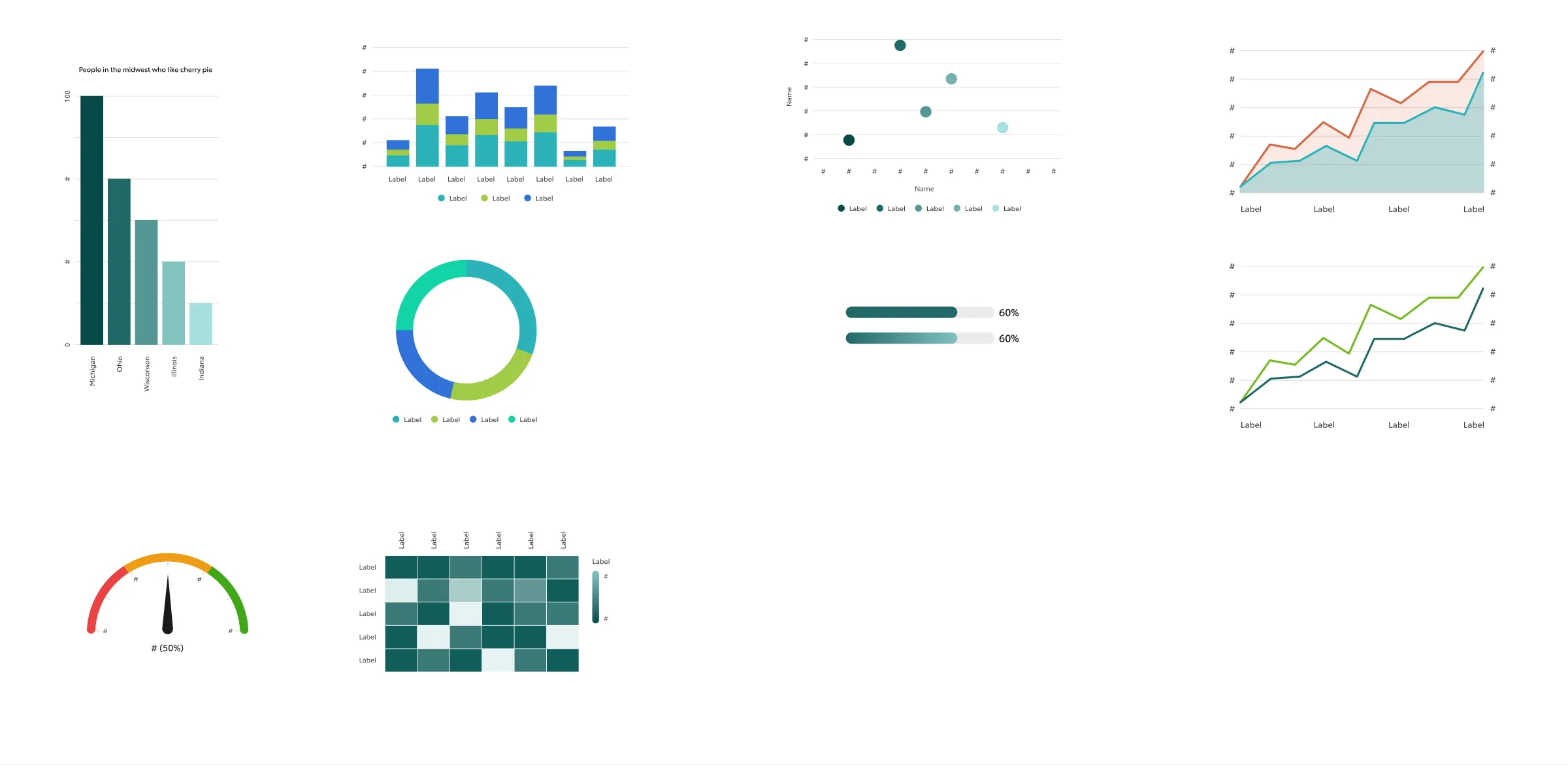
ExchangeLodge chart library including bar, stacked column, donut, dot plot, gauge, heatmap, and multi-axis line charts

Bar, stacked column, donut, dot plot, flat and binned gauges, heatmap, and multi-axis line charts, each built as a component with variants.

Color for data

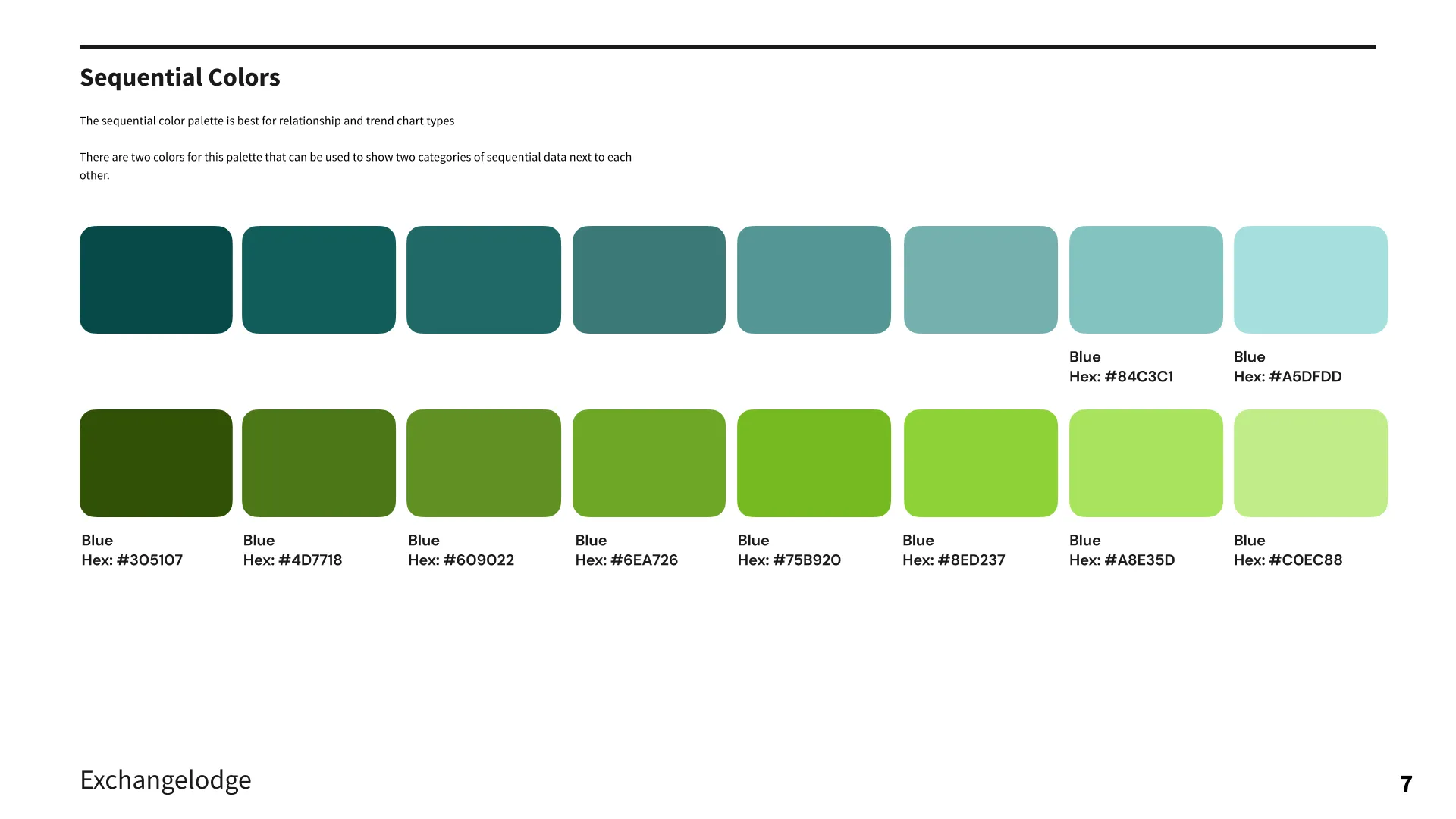
Data needed its own palettes, separate from the brand colors. A qualitative palette is used for categories that don't relate to one another, applied in a set order so neighboring colors always contrast. Two sequential ramps are used for trend and relationship charts, and they can sit side by side to compare two series.
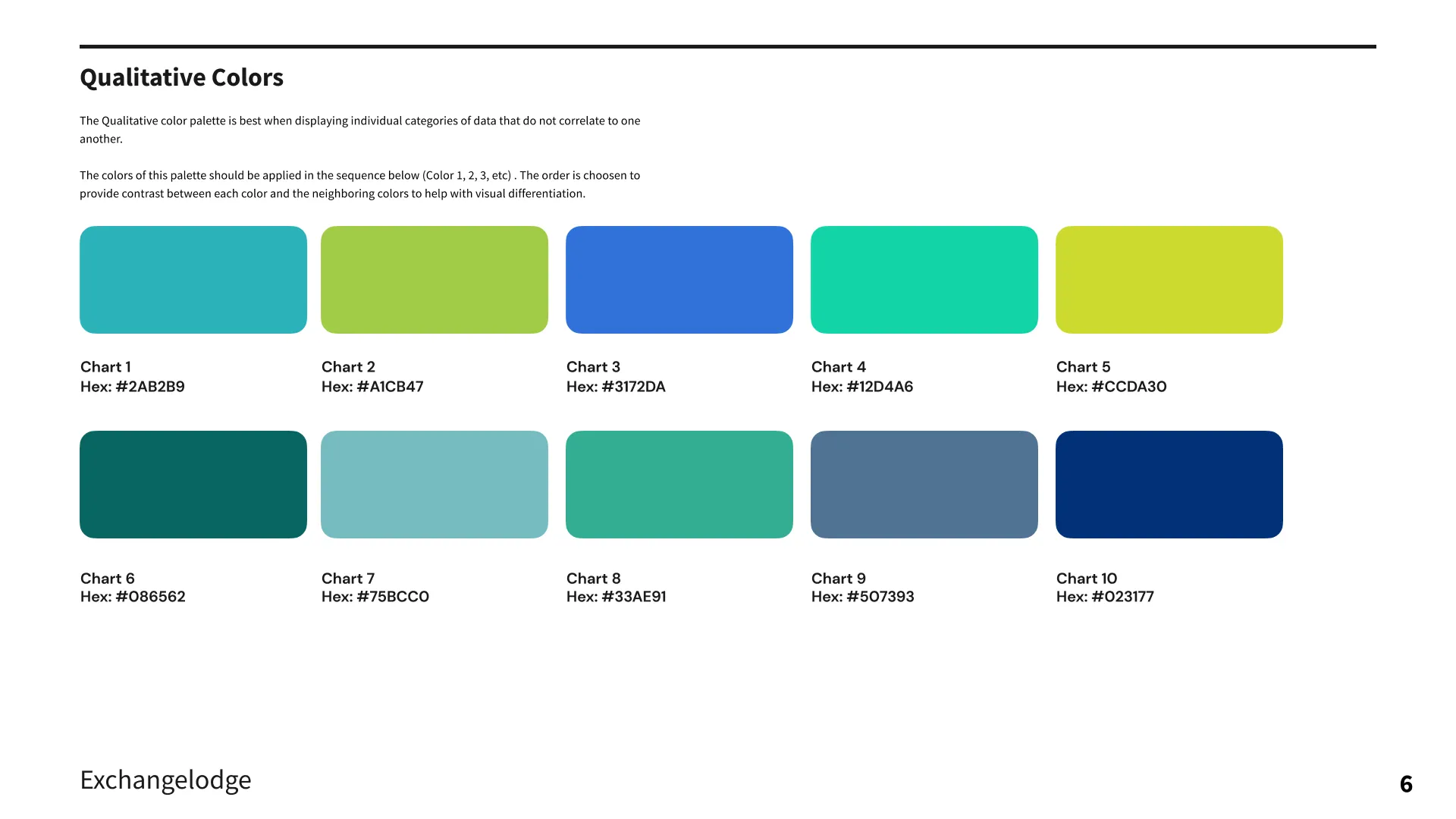
Qualitative chart color palette with ten ordered colors
Sequential teal and green chart color ramps

Data in the product

The same system carries through to the workflow screens. In PCAP processing, grouped tables, period toggles, row-level status icons, and process health show at a glance what has been validated and what still needs attention. Side panels hold workflow details, comments, attachments, and history without pulling users out of the data.
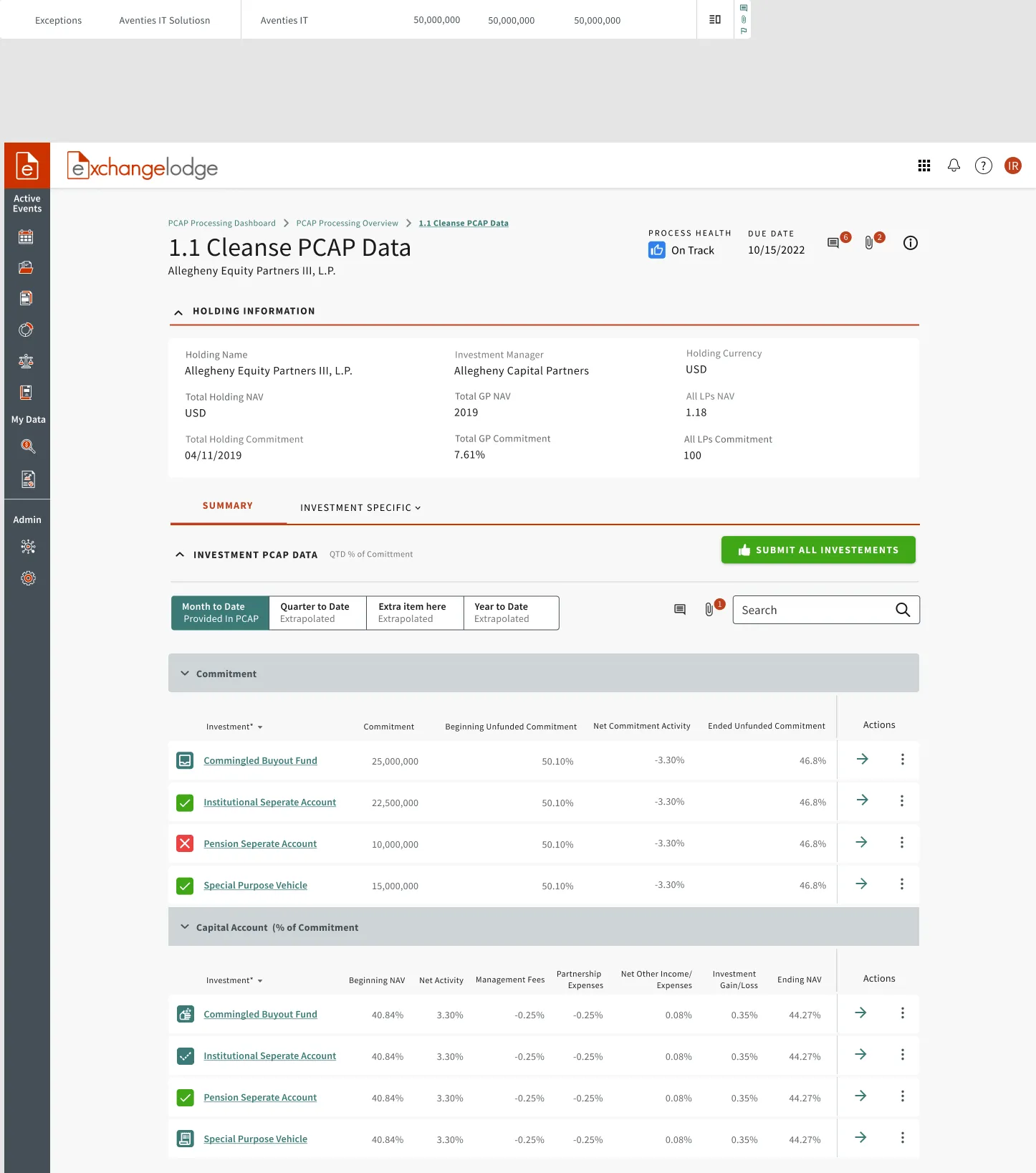
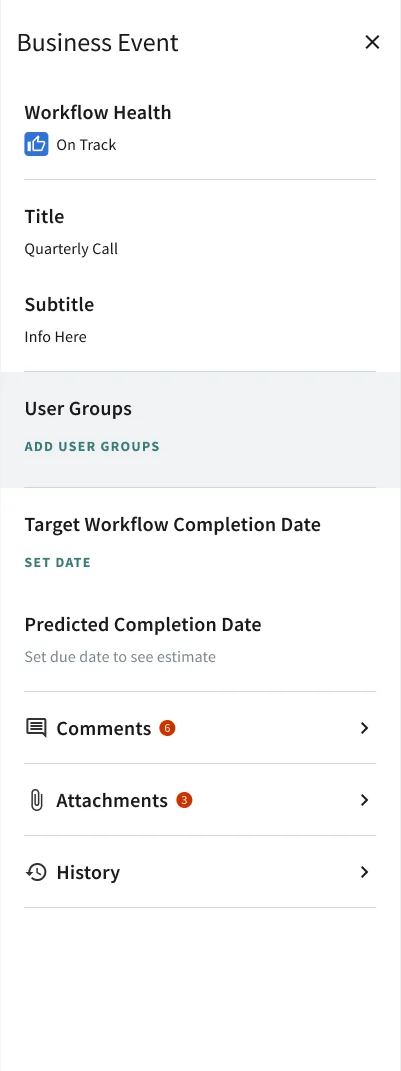
PCAP data cleansing screen with grouped investment tables and status indicatorsBusiness event side panel showing workflow health, dates, comments, attachments, and history

Extending Material Design

Material Design handles buttons, inputs, menus, and chips well, but it stops at a simple data table. ExchangeLodge users spend their day reviewing, editing, and approving rows of financial data, so most of the system's complexity lives in the components I designed on top of Material.

Complex data tables

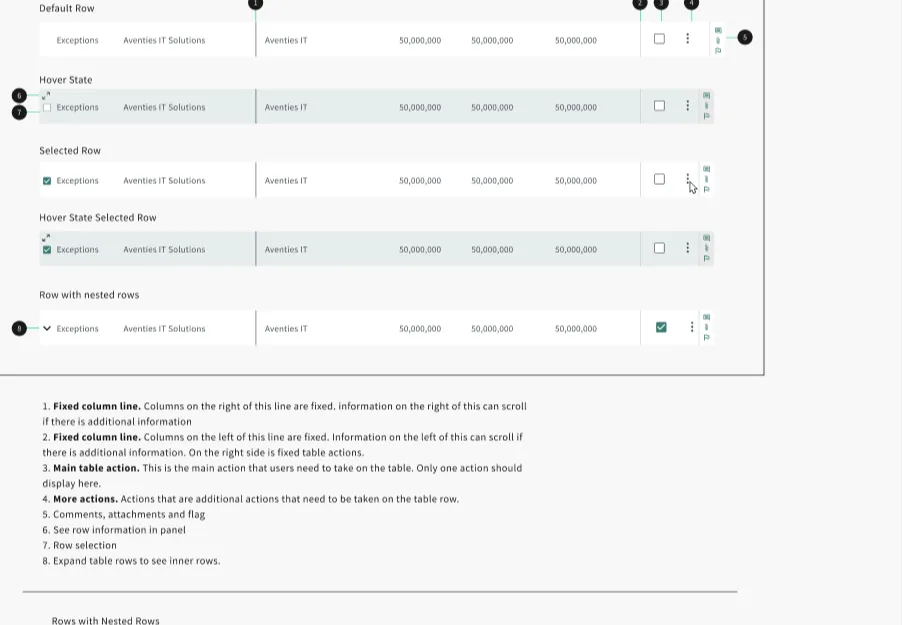
Tables have fixed columns on both sides so identifying information and row actions stay in view while financial columns scroll. Every row has default, hover, selected, and nested states, plus a fixed action area for the primary action, more actions, and comments, attachments, and flags.

Annotated data table row states showing fixed columns, row actions, and nested rows
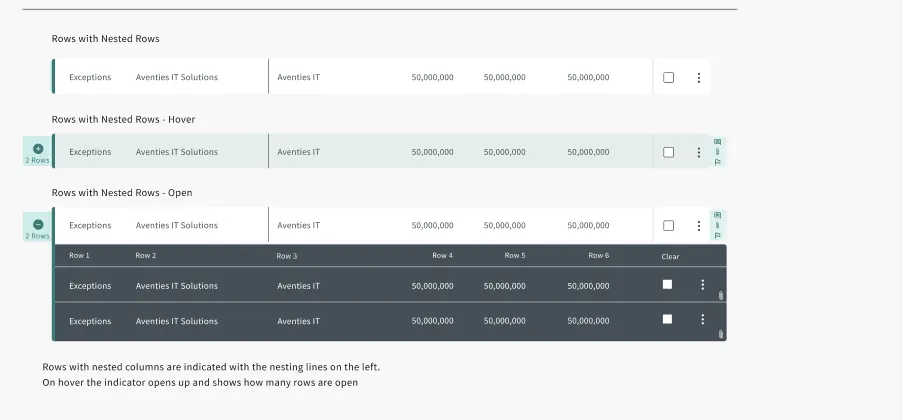
Rows with nested rows, closed and open

Nested rows open beneath their parent, marked by a nesting line on the left.

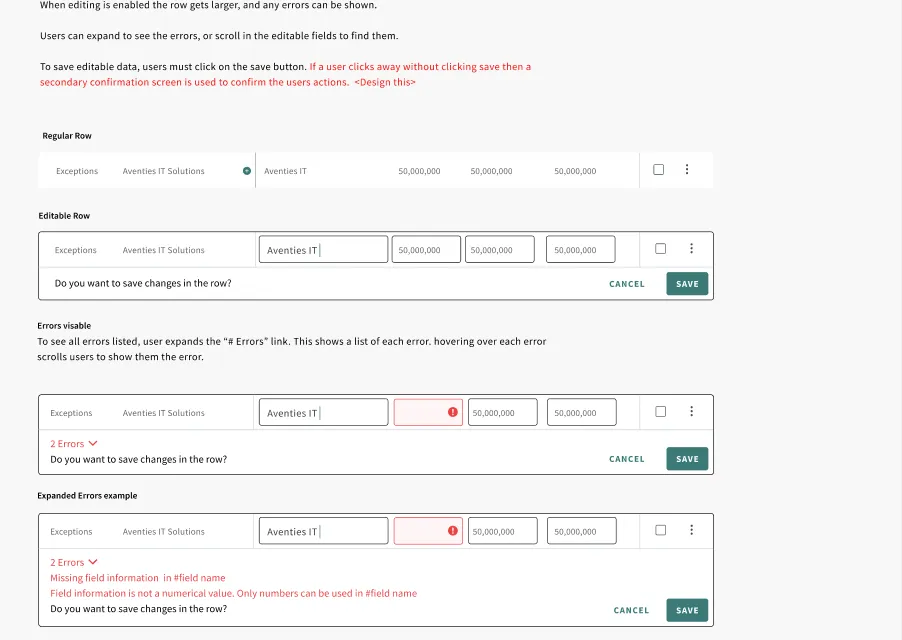
Inline row editing with error states

Double-clicking a row puts it into edit mode. Errors are flagged in the field and listed in an expandable summary.

Cross tab and validation

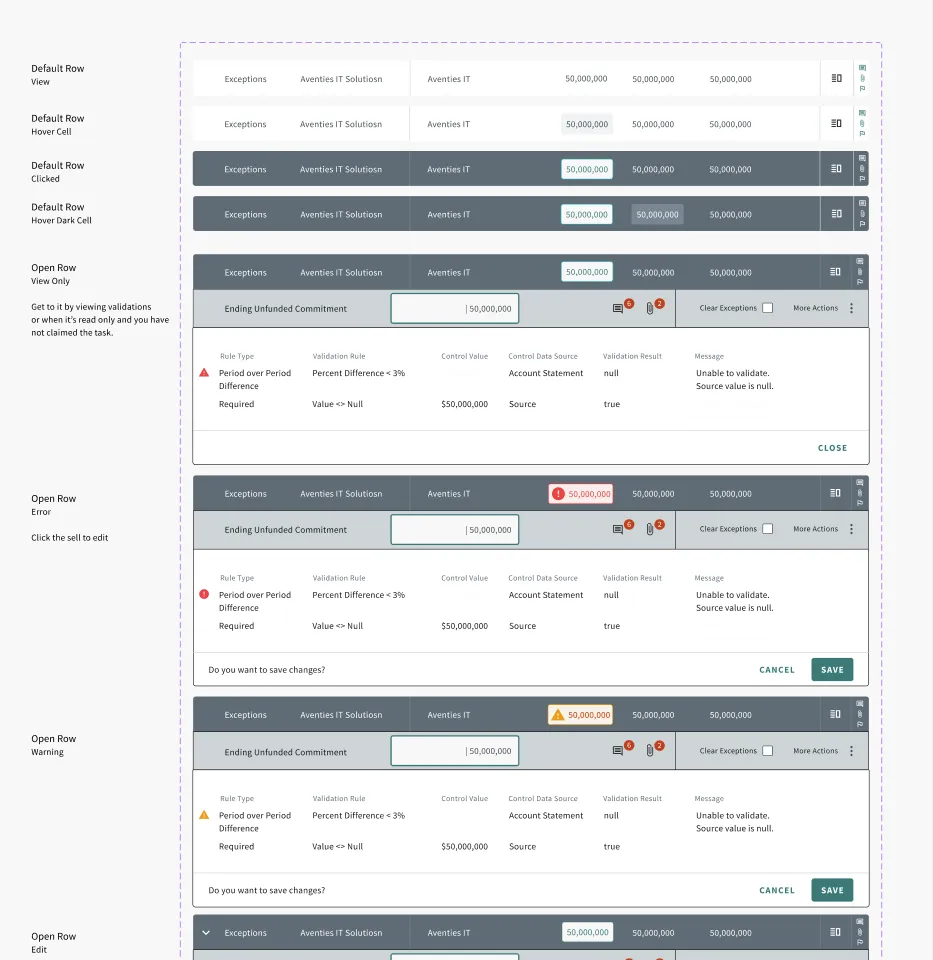
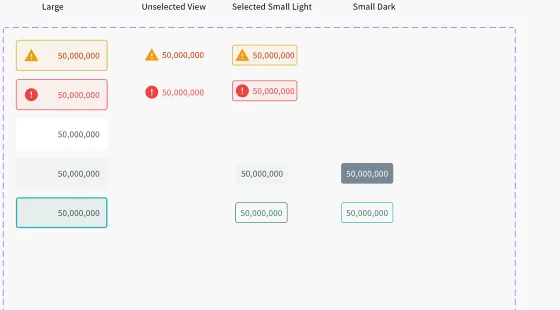
Cross tab tables show PCAP data alongside the rules used to validate it. Opening a row reveals each rule, the source values, and the result, with view-only, edit, warning, and error variations depending on whether the user has claimed the task. Individual cells carry their own warning, error, hover, and selected states in light and dark rows.

Cross tab rows with open row validation details in view, error, warning, and edit states
Cell states for warning, error, default, hover, and selected values

Cell states in large, unselected, small light, and small dark variations.

Filtering and workflow

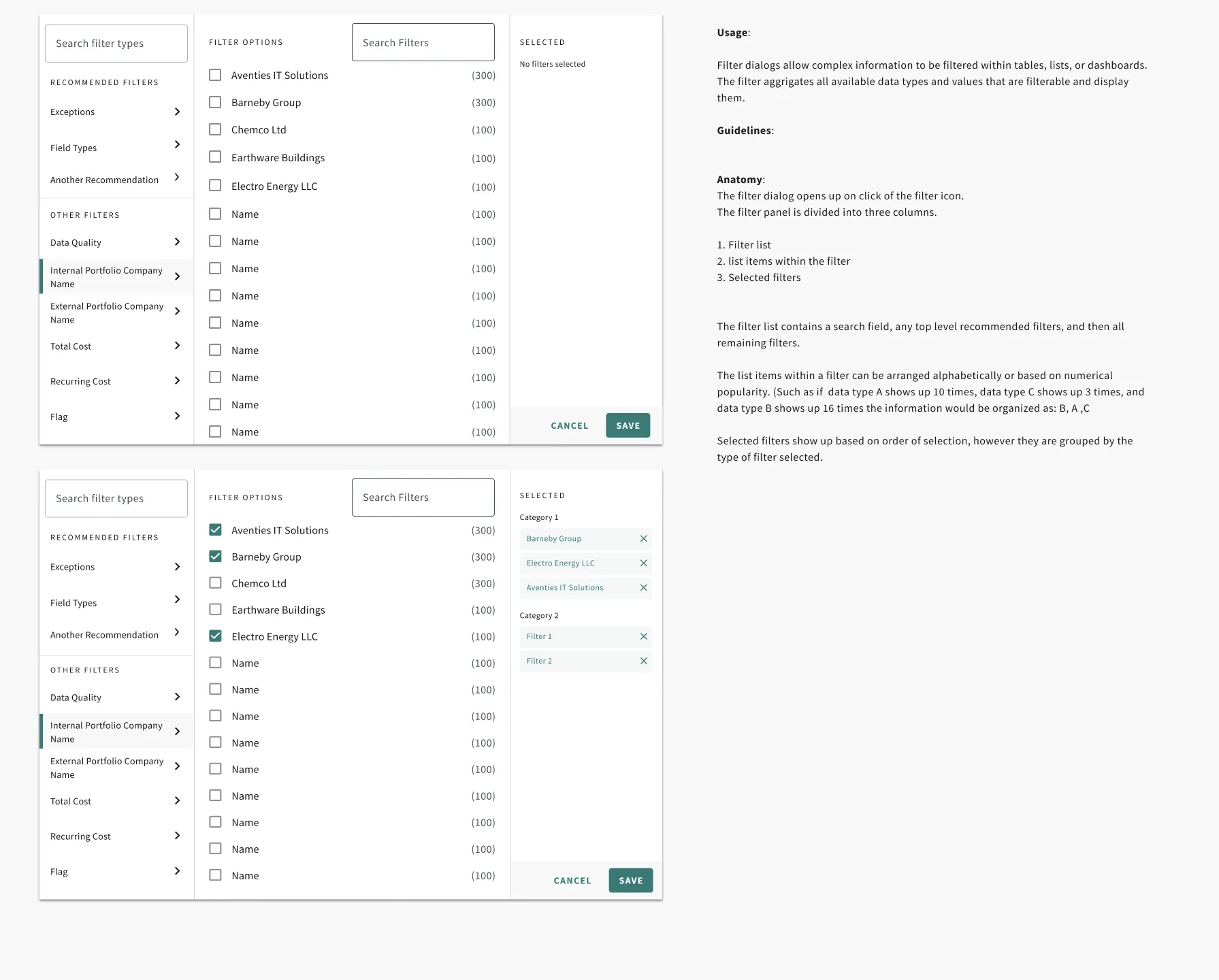
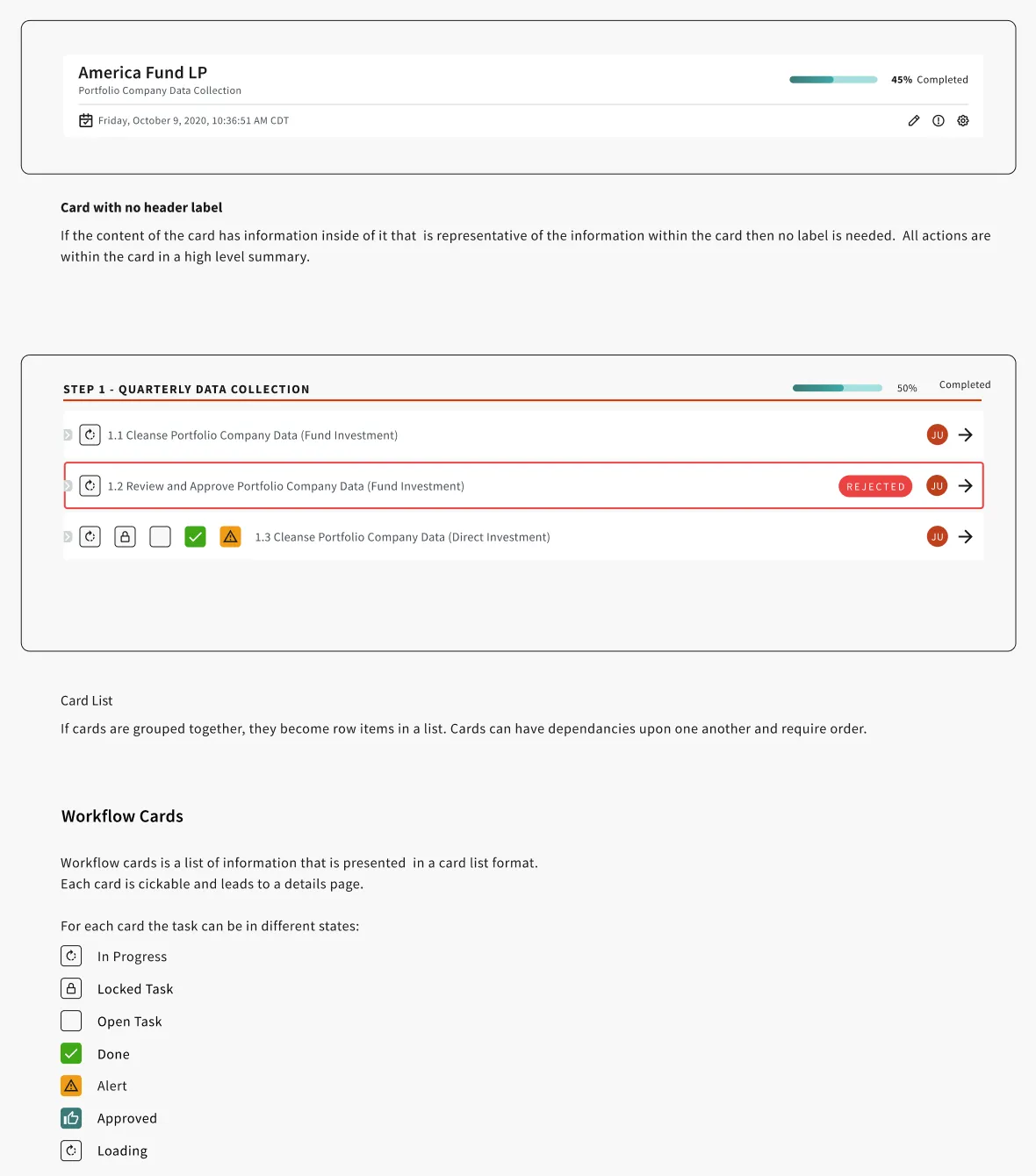
A three-column filter dialog lets users search filter types, pick values with counts, and review selections grouped by category. Workflow cards turn multi-step data processing into an ordered list of tasks, each with a status of in progress, locked, open, done, alert, or approved, and rejected tasks are called out in red.

Filter dialog with filter list, filter options, and selected filters, plus filter chips
Summary card and workflow card list with task statuses

Stress Testing With Engineering

Because these components were custom, I couldn't rely on Material's defaults. I worked closely with engineering to make sure every property and state was defined well enough to build and customize.

Testing against real data

I put components through the edge cases that real PCAP data produces: long fund and company names, very large numbers, deeply nested rows, missing source values, and rows with several errors at once. Each case got a documented answer, such as truncating with a tooltip, wrapping to two lines, or showing a validation message when a source value is null.

Getting the props right

With engineers, I walked through each component's properties, variants, and states to match how they would be built in code, so the Figma components and the coded components lined up. We also agreed on what was in scope for V1 and what could wait, like table grouping and display density, so the team could ship and come back to the rest.

Design System Foundations

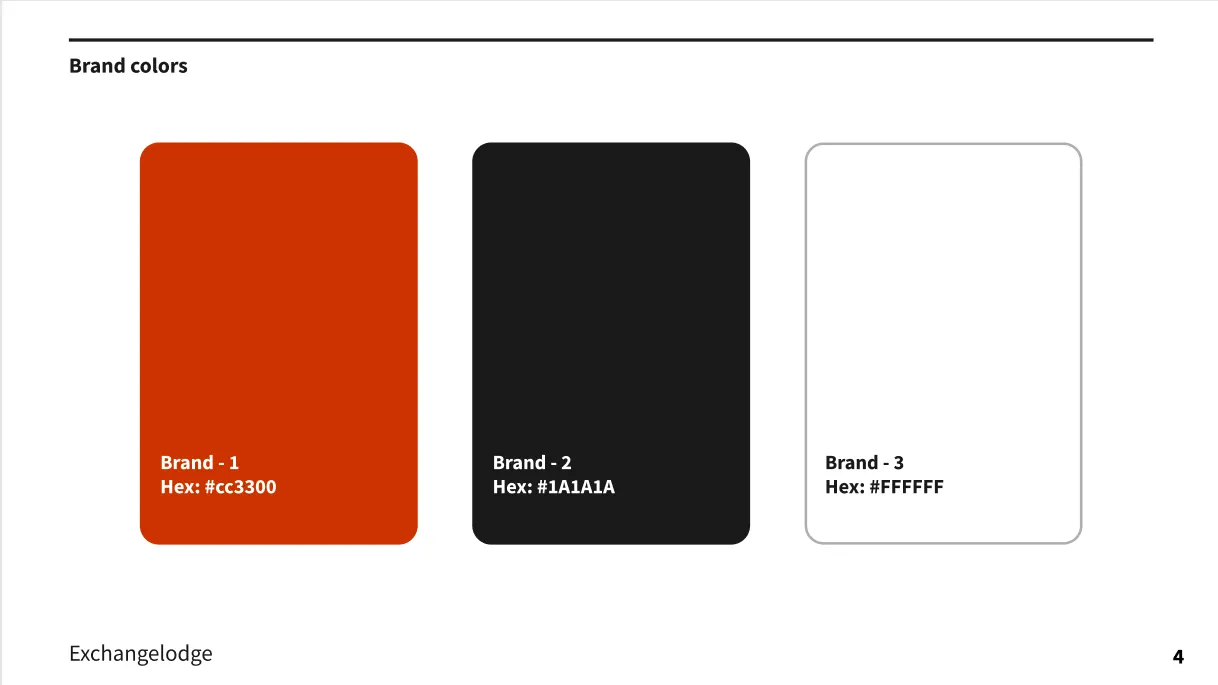
Underneath the data work is a style guide that sets the brand colors, supporting palettes, type scale, and spacing used across every screen.

ExchangeLodge brand colors
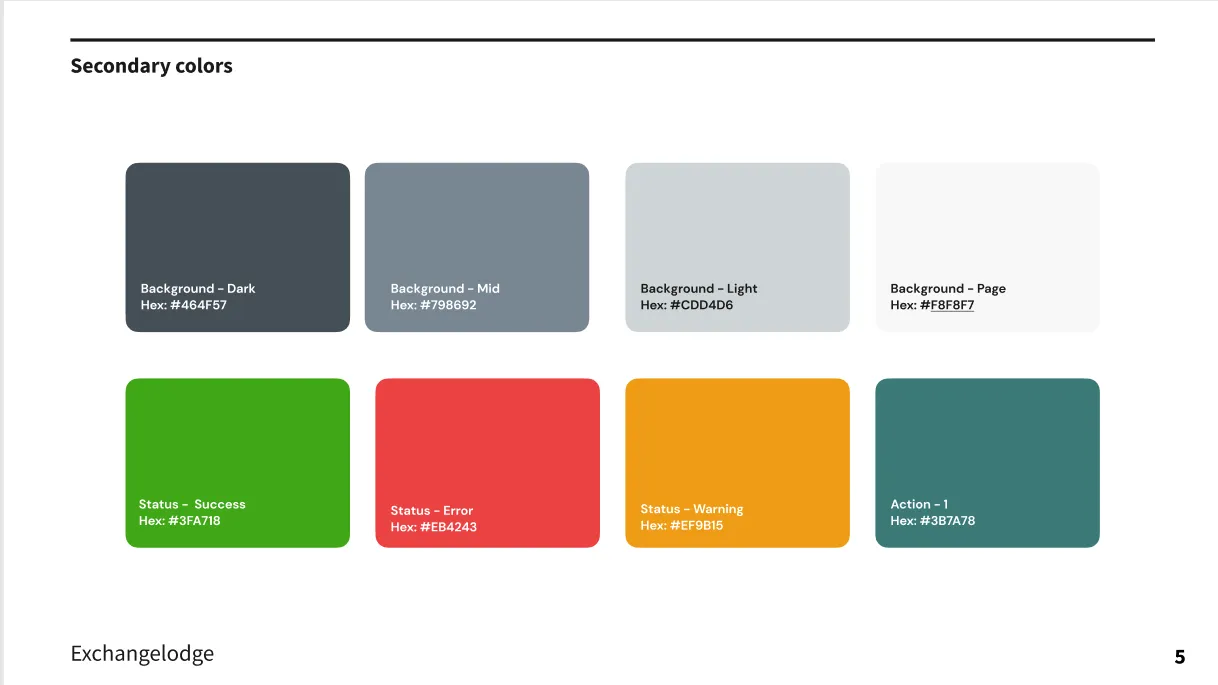
ExchangeLodge secondary colors
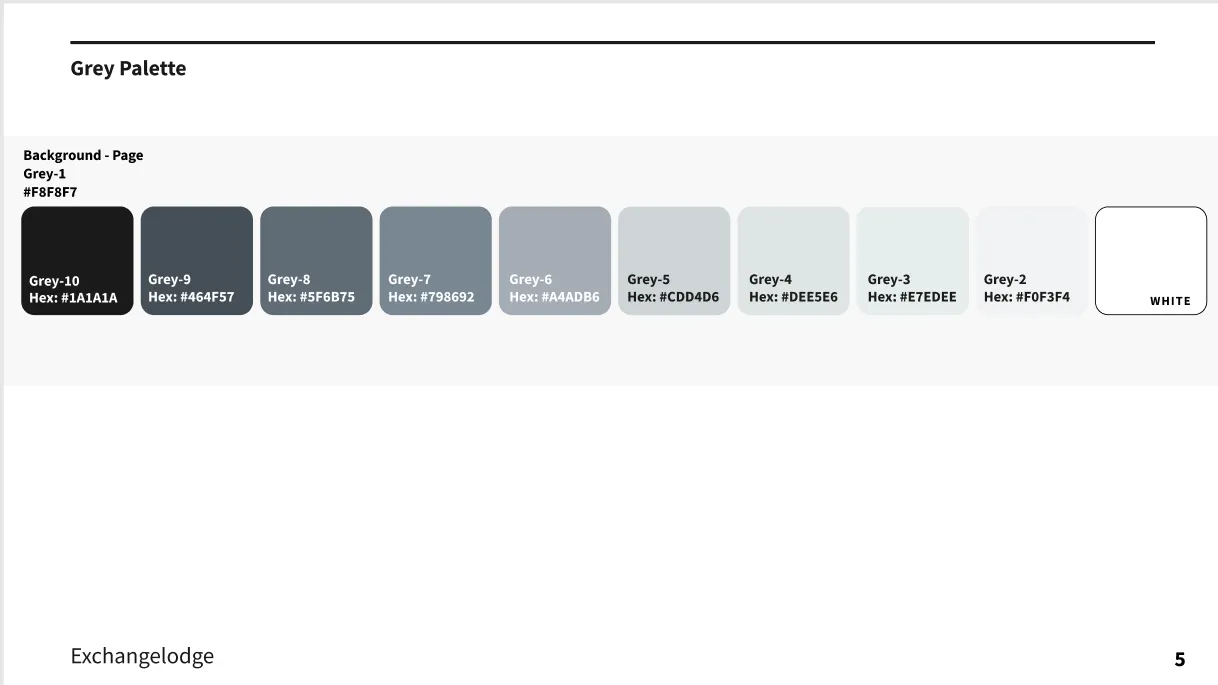
ExchangeLodge gray palette
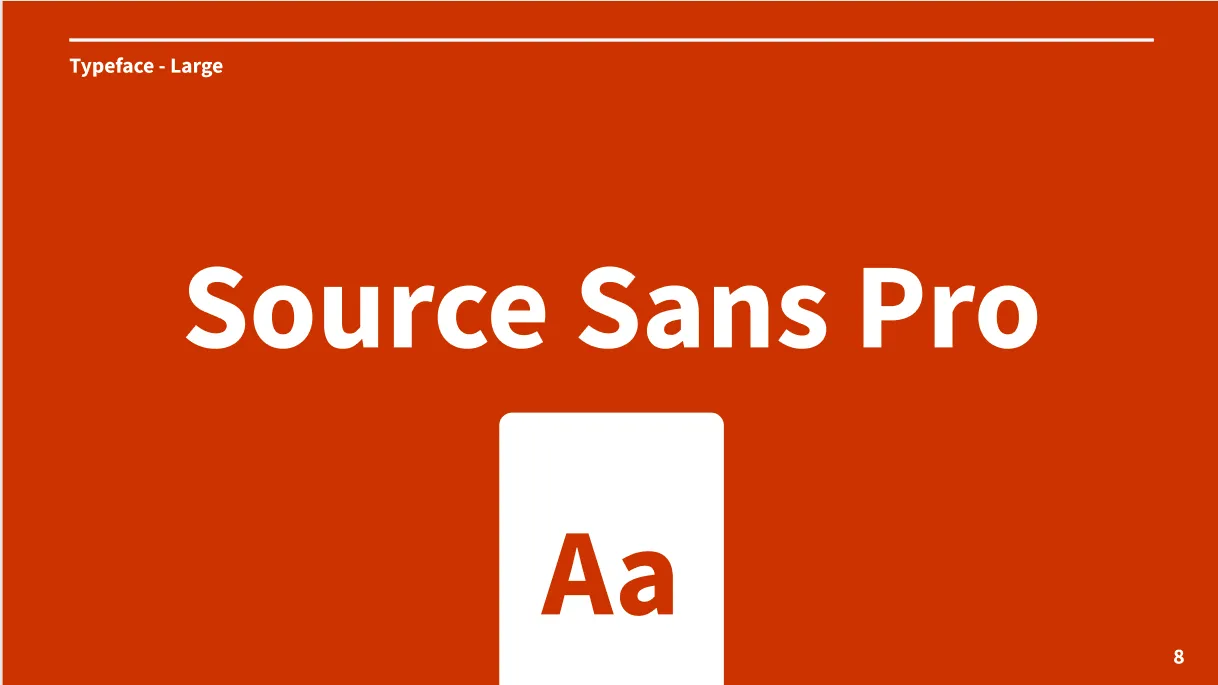
ExchangeLodge typeface, Source Sans Pro
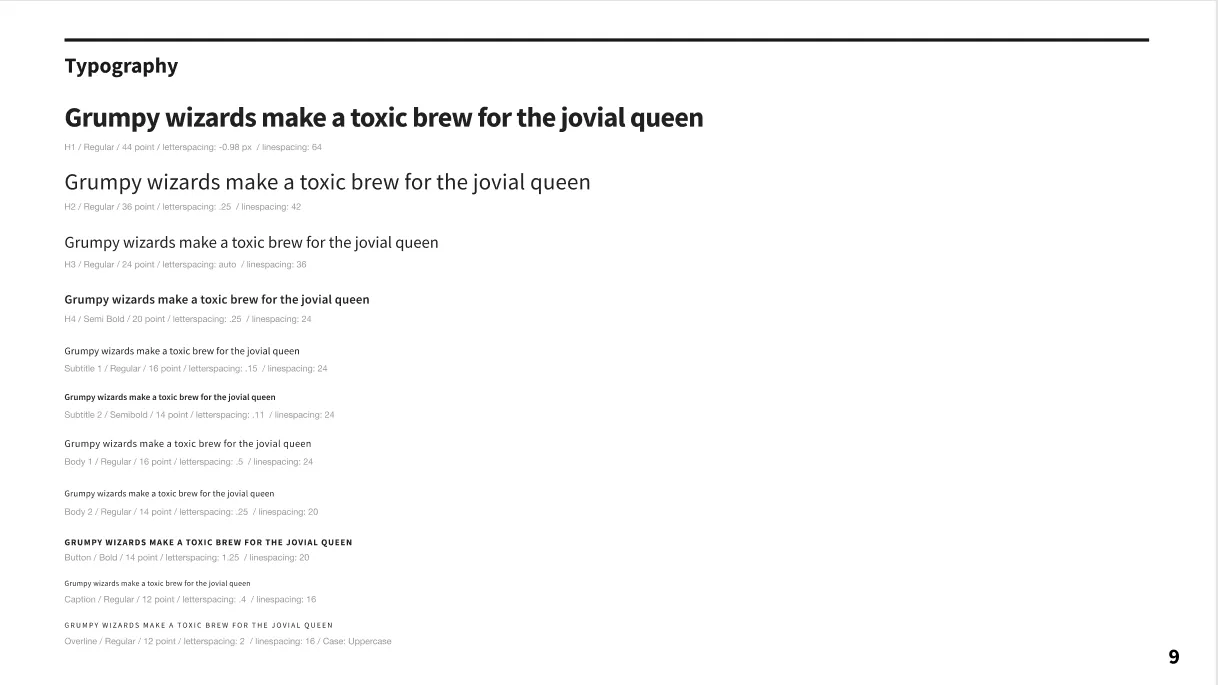
ExchangeLodge type scale
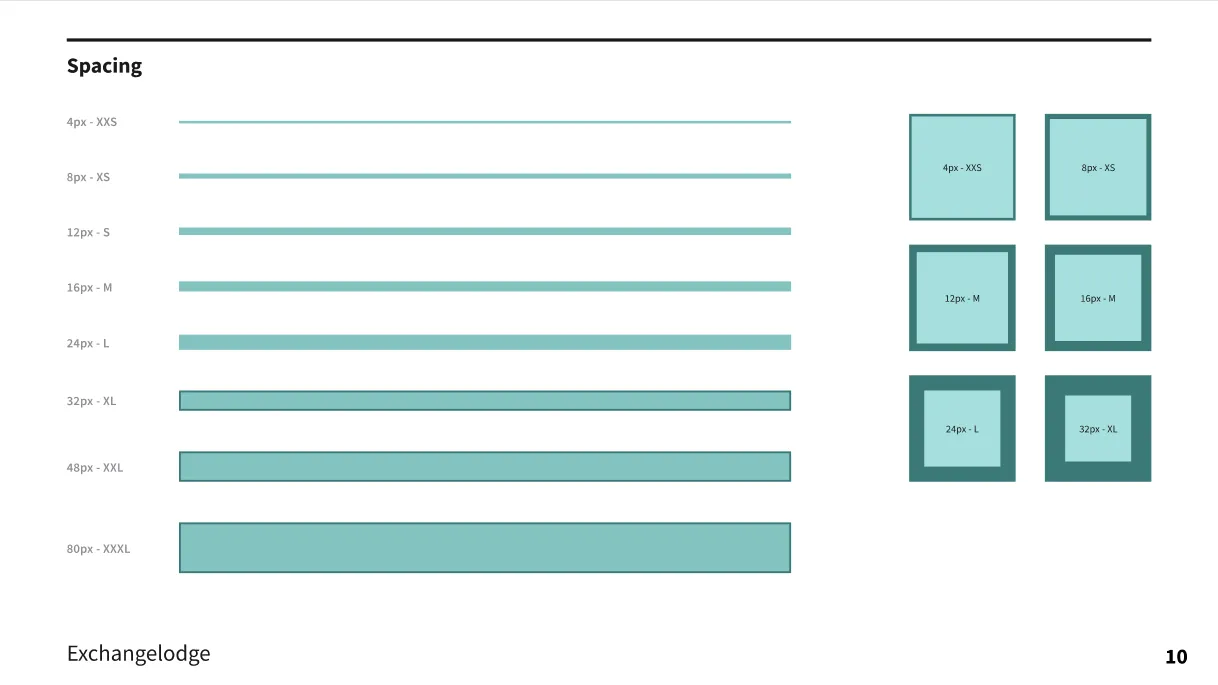
ExchangeLodge spacing scale

Outcome

ExchangeLodge's engineering team built the design system into code and was able to extend it as needed. Because the custom components had been stress tested and their properties defined up front, new workflows and variations could build on what was already there instead of starting from scratch.